
Is sync a backup? Try restoring a pretend deleted file
Delete a pretend photo, sync its mirror, then restore an earlier snapshot. Understand what a backup must let you recover—and why version history matters.
On this page
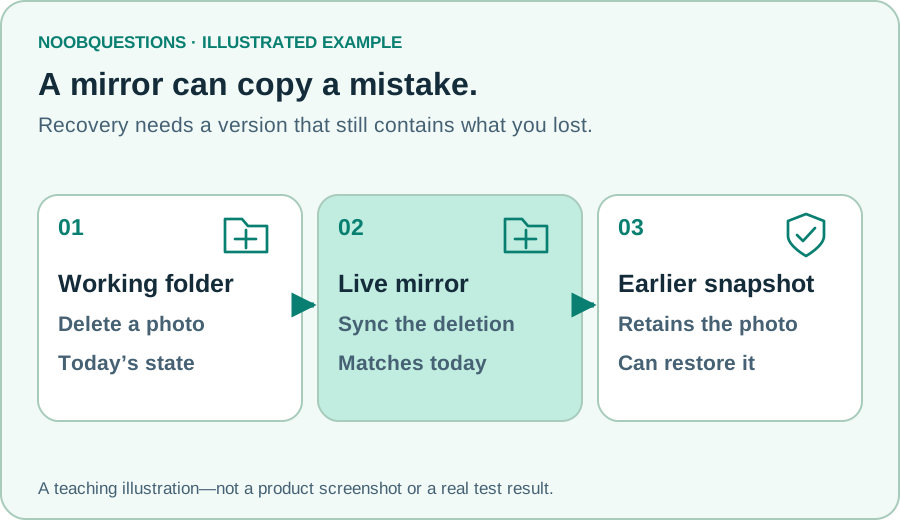
In a few minutes: See the difference between matching today’s folder and retaining a recoverable earlier version.
Two copies can have different goals
You save a photo in a folder that syncs to another device. Having it in both places feels reassuring. But ask a more specific question: if you accidentally delete it, does the second place retain the photo, or copy the deletion?
Sync usually aims to keep locations aligned. A backup should let you recover from a chosen earlier state or failure. The product name alone does not tell you how much history is kept, how deletion works, or who can remove the recovery copy.
This is not a claim that cloud sync can never help with recovery. Many services have a recycle bin or version history. You need to understand the actual retention and restore behavior, rather than count icons showing the same folder.
Try it: deletion is a change too
Delete the pretend original, then sync the mirror. The photo disappears from both current folders. The earlier snapshot still has it. Restore that snapshot, then sync again to bring the mirror back in line.
The exercise intentionally gives its live mirror no trash or version history. The retained snapshot cannot be deleted through these buttons. Real services may behave differently; this is a small model of one failure and recovery path.
Learn by changing one thing
Delete a pretend file. Can you get it back?
The original, its live mirror, and an earlier retained snapshot all start with holiday.jpg.
The mirror deliberately has no recycle bin or version history; many real sync services do. The snapshot is already retained in this story. This exercise does not inspect or delete your files. Inputs stay on this page; no account, file, or network is changed.
What did you actually get back?
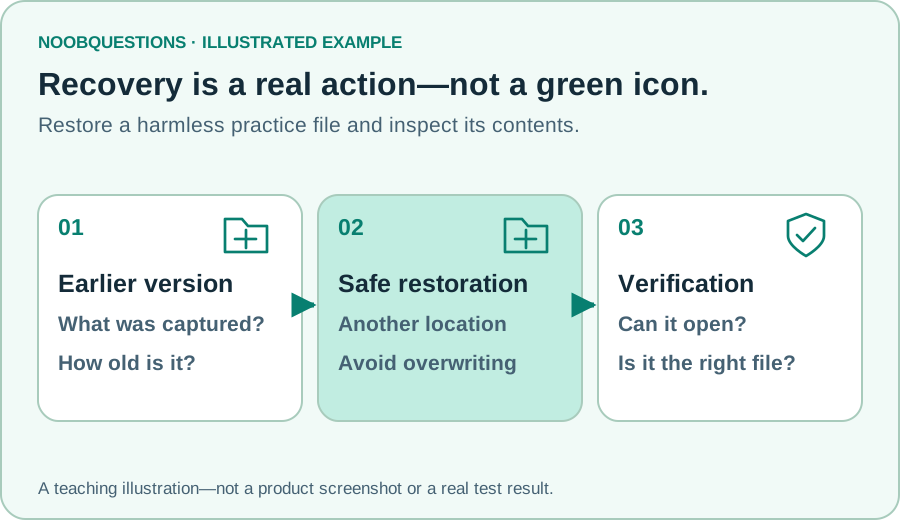
Restoring a snapshot gets the file version captured then. If you edited the photo afterwards, those newer edits might not be in the restored copy. “I have a backup” leaves out two important questions: how old is it, and can I restore what I need?
File history tools can keep earlier versions. For example, Microsoft’s File History instructions describe restoring files or folders from previous versions. That is a concrete recovery operation, not merely another current copy.
Restoring into a different location can make comparison safer than overwriting a current file. Follow the tool’s official instructions; a real overwrite may discard something you wanted to keep.
A small, authorized recovery check
Use a disposable, non-sensitive practice file in a system you own or are authorized to test. Confirm what records an earlier version, then recover that practice file to a separate location. Do not begin by deleting an important family photo or workplace document.
Check the recovered file opens and contains the expected version. Note the date of the copy and the steps needed to find it. A green sync icon is not the same evidence as a successful restore.
Also ask what happens if the main account or device becomes unavailable. A recovery copy that can be removed through the same compromised account may not cover the failure you are worried about. Appropriate separation, offline copies, or immutable retention depend on the actual risk and system.
No single checklist guarantees recovery. Storage limits, retention expiry, encryption keys, permissions, and damage to the copy can all matter. This article shows why keeping history helps; it does not claim to audit your backup arrangement.
A quick check
The mirror faithfully syncs deletions and keeps no history. Will it undo an accidental deletion?
Pick an answer. You can try again.
Keep a recovery note, not just a slogan
Write down what is protected, where its history lives, and how you verified one safe restore. Keep secrets and confidential paths out of public comments. Discuss only a sanitized lesson or correction.
For another safe-before-wide-change idea, try the small-office policy exercise. A working recovery plan and a small initial test are useful habits in more than one area of IT.
About this resource · sources, dates & scope
Attribution: noobquestions Editorial. Original publication: . Recorded revision: .
An original AI-assisted teaching lesson. Illustrations and models simplify the concept; they are not screenshots or proof of a deployed system.
AI-assisted · Original teaching scenarios; primary references checked October 2, 2026. Exercises are local models, not verified production deployments.
Community discussion
Comments
Ask a question or share a practical note. Comments publish immediately after verification and spam checks. Do not post personal or confidential information.
Loading comments…