
Investigate a Compromised Exchange Server using SIEM and Sysmon
Microsoft Exchange Server is commonly deployed in an enterprise, offering email, contact management, calendar, scheduling services, and more.
On this page
Microsoft Exchange Server is commonly deployed in an enterprise, offering email, contact management, calendar, scheduling services, and more. As Microsoft Exchange Server provides critical services and stores sensitive information such as email messages, attachments, events, contacts, and notes, it is often targeted by a ransomware attack.
The TryHackMe Room — Conti allows us to investigate a ransomware attack on an Exchange Server. We are provided with SIEM (Splunk) access, and the task is identifying the attack pattern. In this article, we investigate the use of Splunk query and Sysmon properties to identify the action performed by an attacker.
TryHackMe Room: Conti
https://tryhackme.com/room/contiransomwarehgh
- Part 1: Identify the ransomware location
- Part 2: Find the hash of the suspicious file
- Part 3: Locate a file saved to multiple locations
- Part 4: Find the command executed by an attacker for adding a Windows user
- Part 5: Locate migrated and original processes
- Part 6: Locate the process image for getting system hashes
- Part 7: Identify the source of a web shell exploit
- Part 8: Find out the CVE used in the exploit
- References
Part 1: Identify the ransomware location
Sysmon Event ID 11: FileCreate
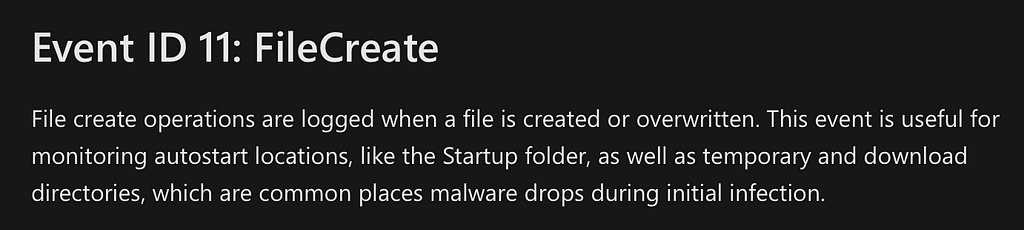
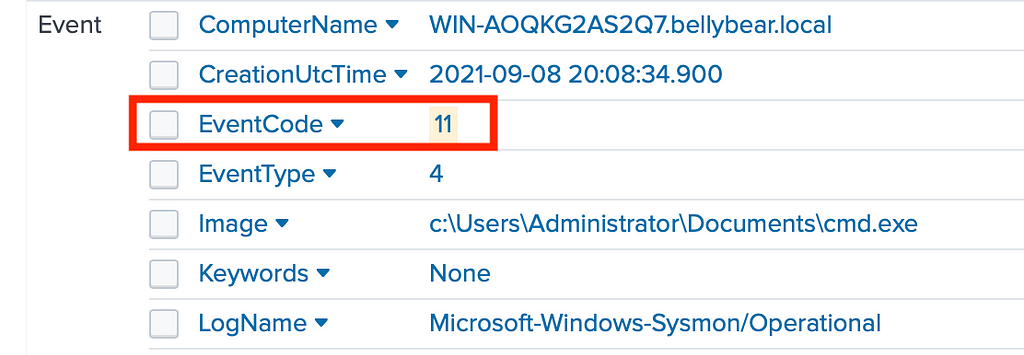
According to Sysmon documentation, Event ID 11: FileCreate refers to creating or overwriting a file. The file may be launched from a user directory.
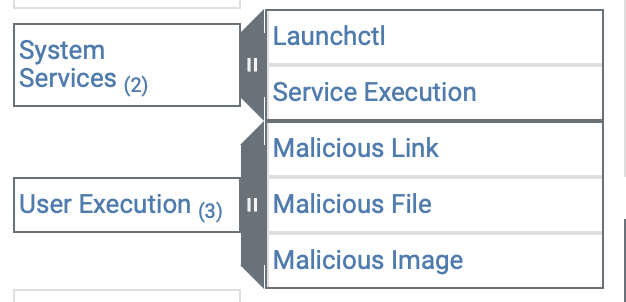
With reference to MITRE ATT&CK, file creation typically occurs during the Execution stage.
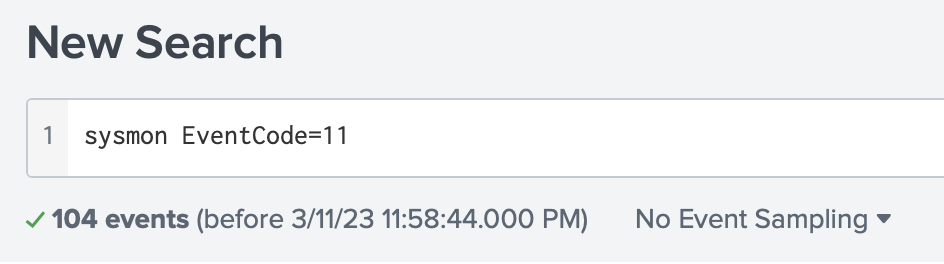
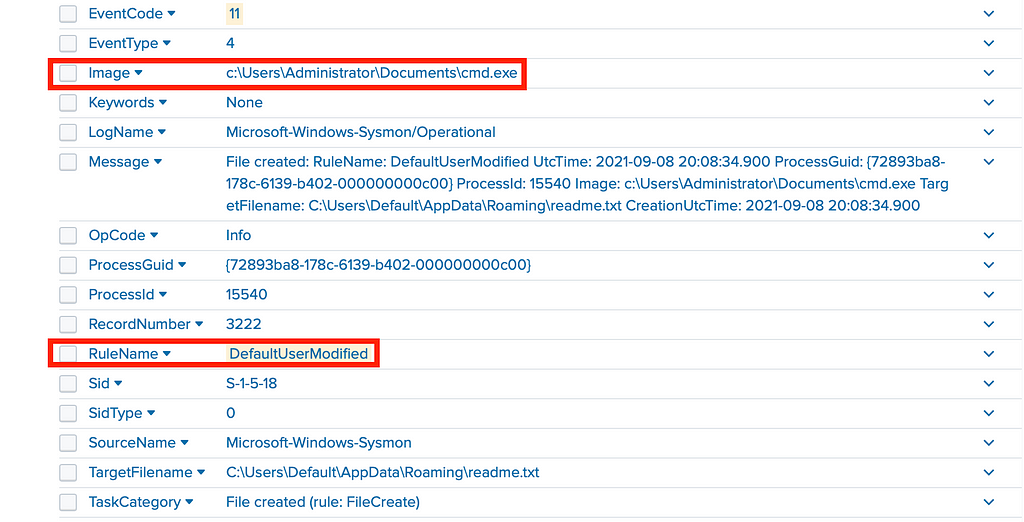
Splunk query: sysmon EventCode=11
Looking at the image location, c:\Users\Administrato\Documents\cmd.exe is out of the ordinary because the binary was executed in a user directory.
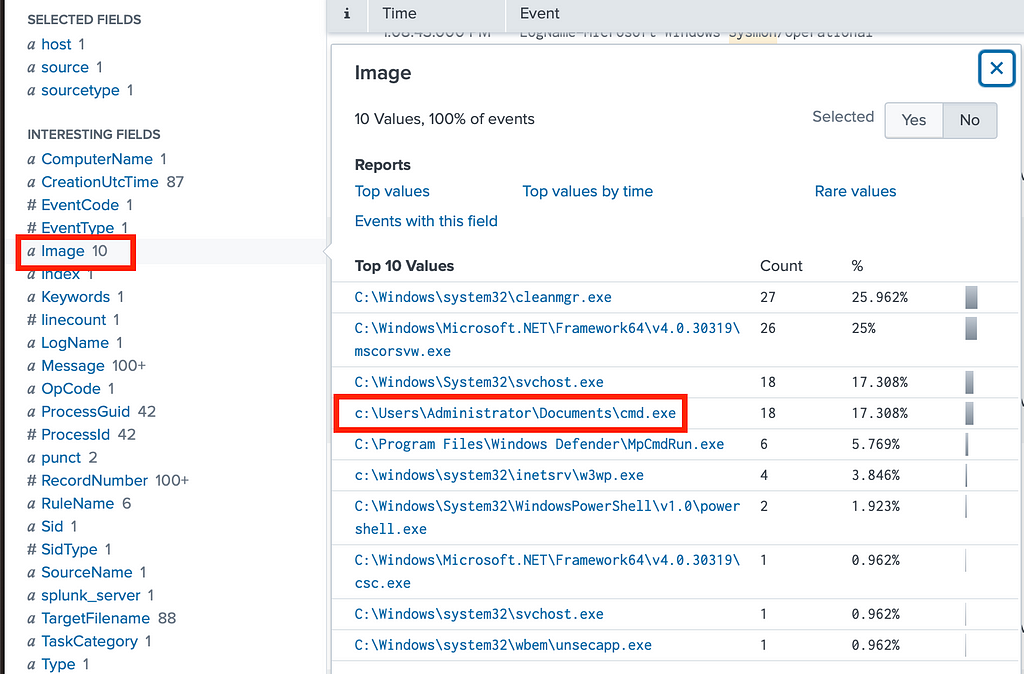
Further looking into it, the process was marked by Sysmon with the rule: DefaultUserModified. The command tried to change the Windows user profile.
As in the query, the Sysmon Event ID is 11: FileCreate
Part 2: Find the hash of the suspicious file
Now that we have the location of the suspicious binary file, we can look into the hash value of the file.
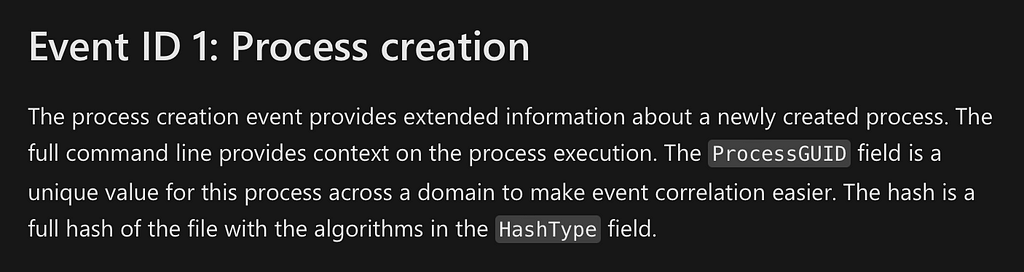
Sysmon Event ID 1: Process Creation
Sysmon Event ID 1: Process Creation contains logs regarding a newly created process, including the hash values of files.
Splunk query: sysmon EventCode=1 Image=”C:\\Users\\Administrator\\Documents\\cmd.exe”
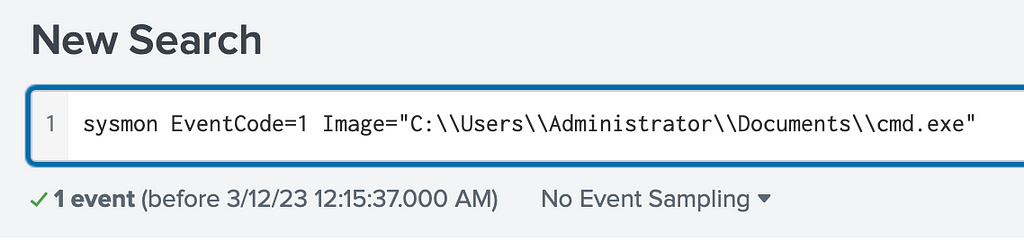
We can combine EventCode=1 Process creation with the path of the suspicious binary to search for related events on Splunk.
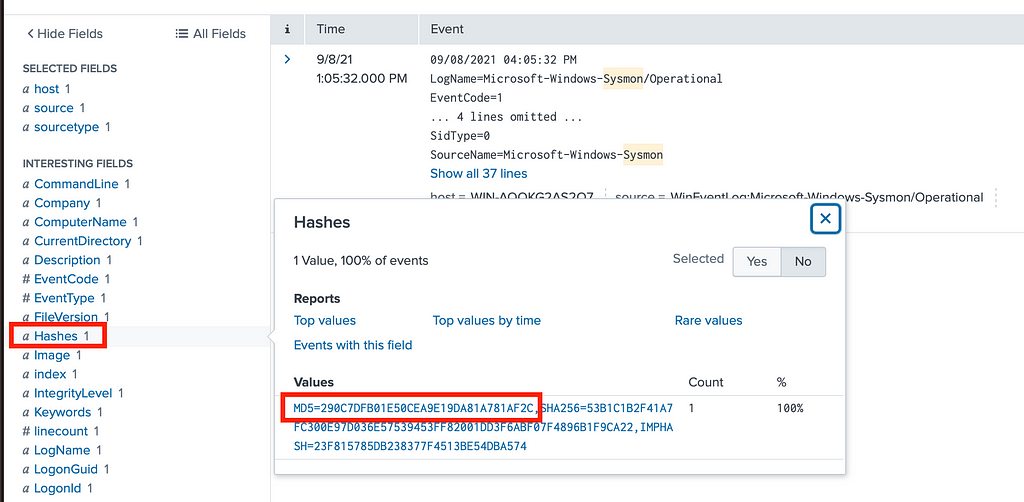
A related log is displayed. The hash value (290C7DFB01E50CEA9E19DA81A781AF2C) was logged by Sysmon, which can be seen in the “Hashes” Field on Splunk.
Part 3: Locate a file saved to multiple locations
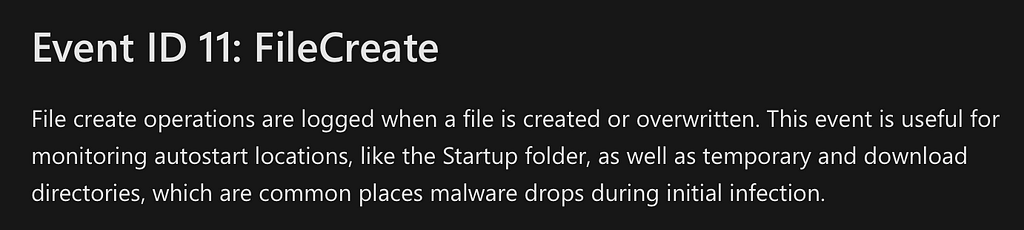
Sysmon Event ID 11: FileCreate
Again, Event ID 11: FileCreate refers to creating or overwriting a file.
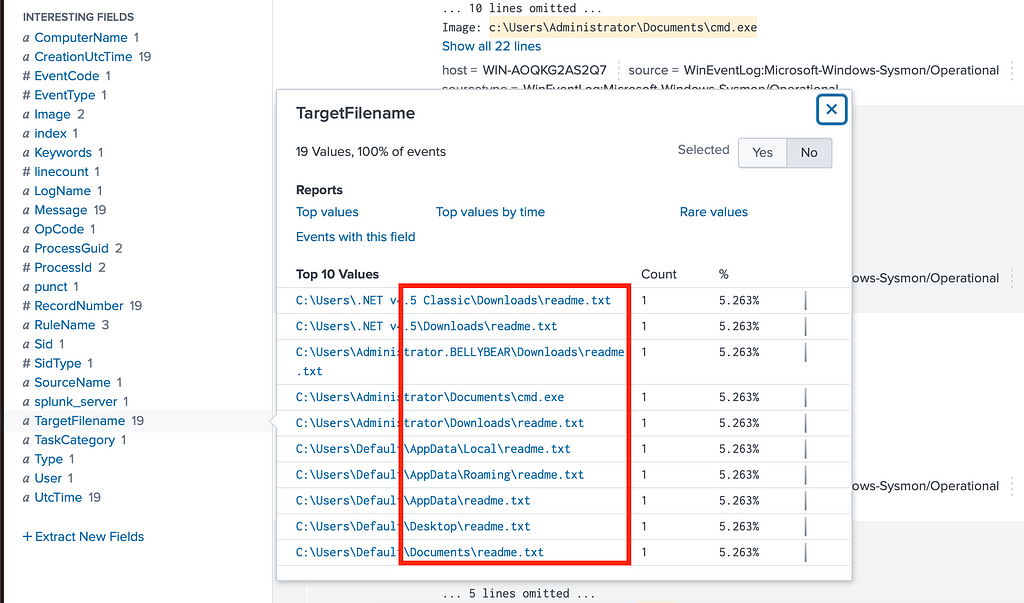
Splunk query: sysmon EventCode=11 “c:\\Users\\Administrator\\Documents\\cmd.exe”
Combining Event ID 11: FileCreate and the path of the suspicious binary, it is found that files named “readme.txt” were created on multiple directories.
Part 4: Find the command executed by an attacker for adding a Windows user
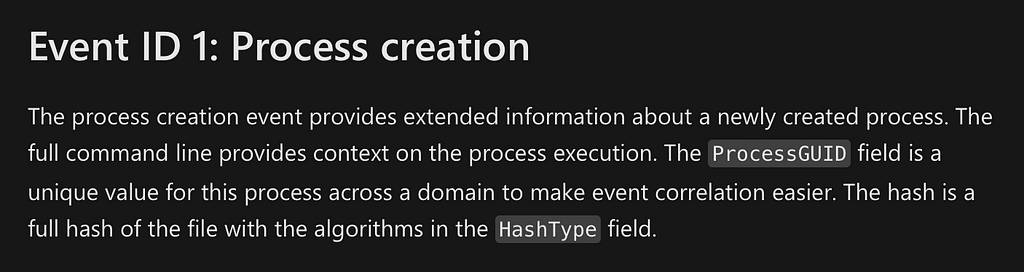
Sysmon Event ID 1: Process Creation
Again, Sysmon Event ID 1: Process Creation contains logs regarding a newly created process, which includes the execution of a command to creating a user.
Splunk query: EventCode=1 user add
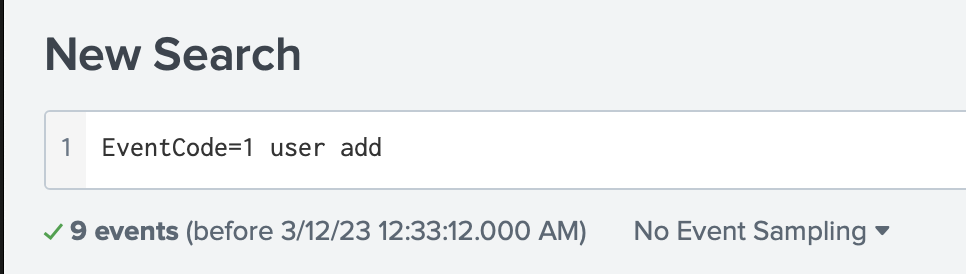
In the ParentCommandLine field, three commands were executed.
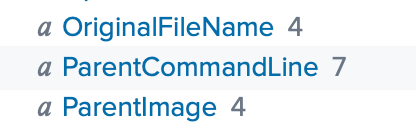
“net user /add securityninja hardToHack123$” was executed to add a user to Windows. The other commands were used to add the user to Windows administrator group and assign it with RDP capability.

Part 5: Locate migrated and original processes
Sysmon Event ID 8: Process Creation
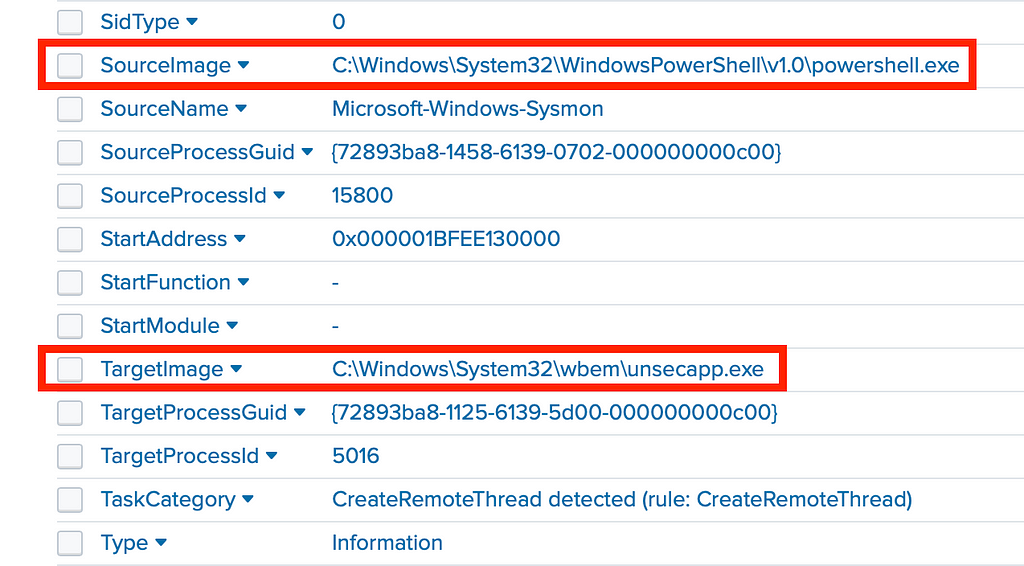
Event ID 8: Process Creation in Sysmon provides information regarding source and target processes.
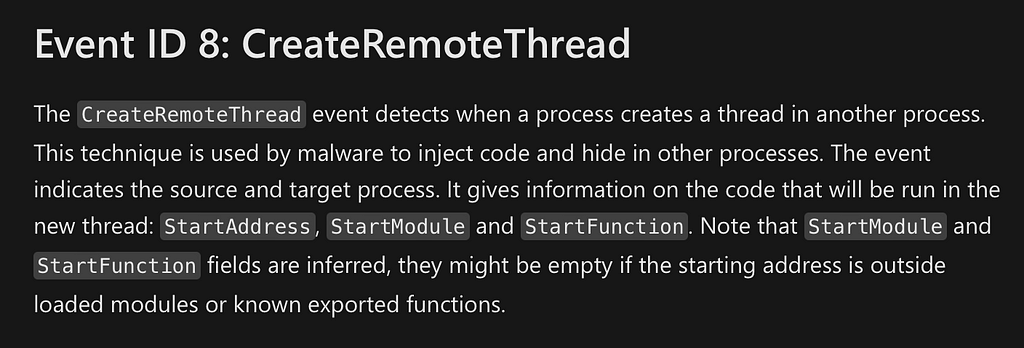
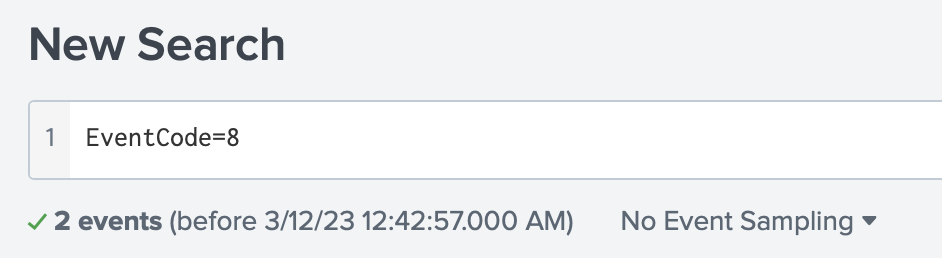
Splunk query: EventCode=8
Searching for EventCode 8: Process Creation on SIEM, we can check if an existing process creates a new process.
C:\Windows\System32\WindowsPowerShell\v1.0\powershell.exe
C:\Windows\System32\wbem\unsecapp.exe
Part 6: Locate the process image for getting system hashes
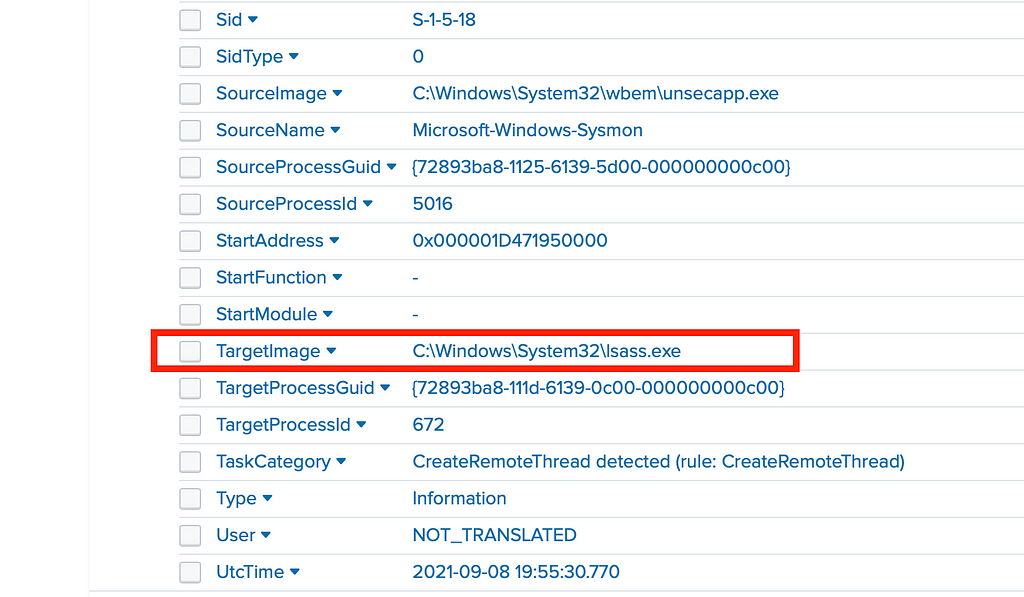
The same Splunk query: EventCode=8 gives another log suggesting that lsass.exe was involved in the remote thread.
C:\Windows\System32\lsass.exe
Part 7: Identify the source of a web shell exploit
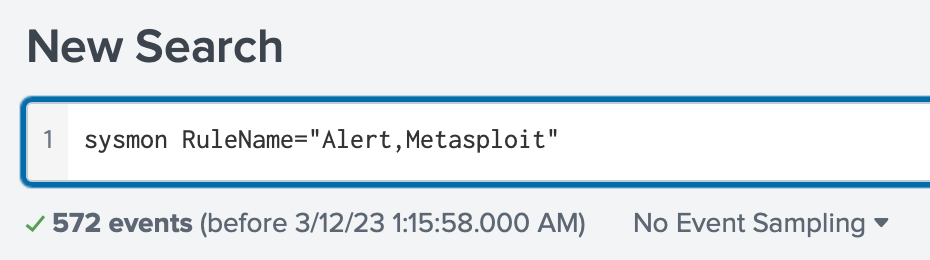
Sysmon includes a mechanism detecting Metasploit-related events. As web shell exploits are commonly used by hacking tools such as Metasploit, the keyword can be included in the Splunk query to identify events related to web shell exploit.

Splunk Query: sysmon RuleName=”Alert,Metasploit”
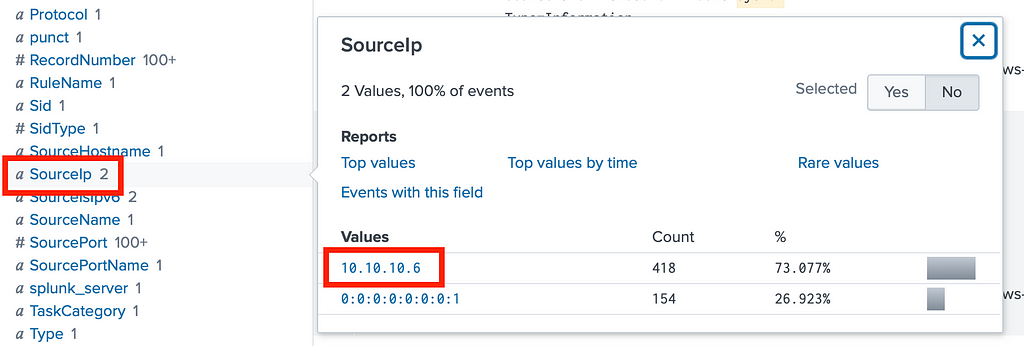
From the “SourceIP” field, an IP address — 10.10.10.6 is found to be related to Metasploit.
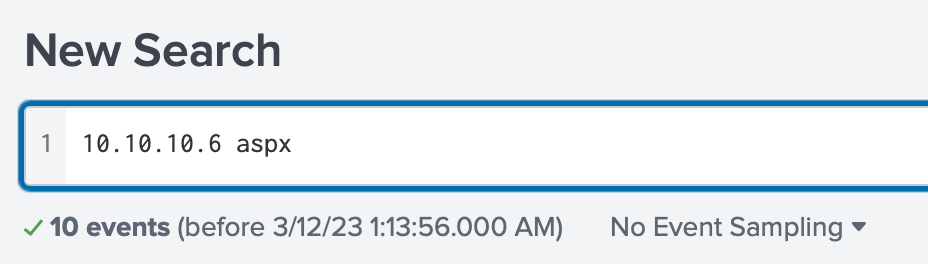
As the web server in the compromised Microsoft Exchange Server is running IIS and ASP.NET web application (ASPX), we use another Splunk query to narrow down the results and identify the activities performed by the remote host — 10.10.10.6.
Splunk Query: 10.10.10.6 aspx
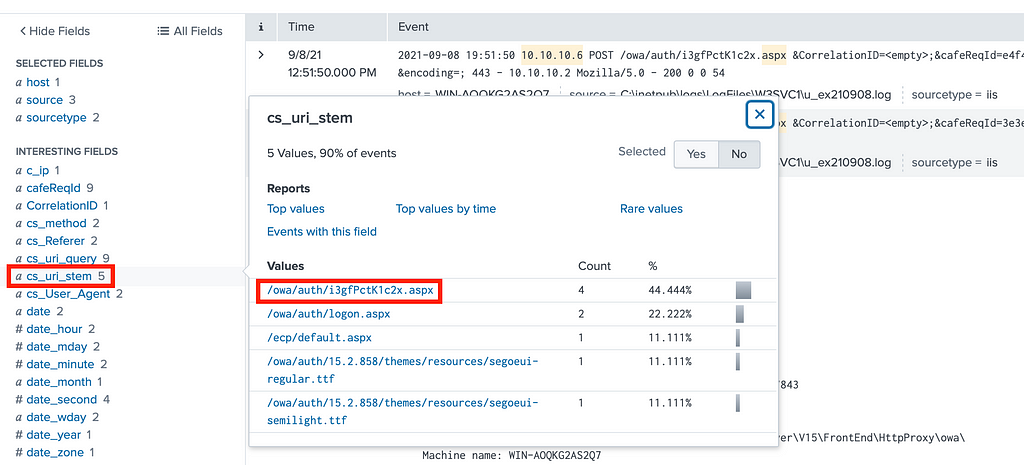
From the cs_uri_stem field, a value /owa/auth/i3gfPctK1c2x.aspx is found. It means that the remote host running Metasploit — 10.10.10.6 is trying to access this website section.
Expanding the logs, the command line that executed the web shell can be found:
attrib.exe -r \\\\win-aoqkg2as2q7.bellybear.local\C$\Program Files\Microsoft\Exchange Server\V15\FrontEnd\HttpProxy\owa\auth\i3gfPctK1c2x.aspx

Part 8: Find out the CVE used in the exploit
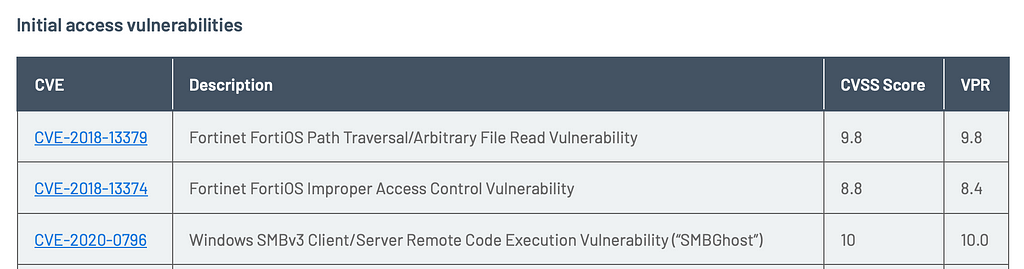
Tenable — Initial access vulnerabilities related to the Conti Ransomware Attack
CVE information can be found in threat intelligence sources such as web blogs and vulnerability scanning tools. According to Tenable, multiple CVEs are related to the Conti Ransomware Attack.
CVE-2020–0796,CVE-2018–13374,CVE-2018–13379
References
Sysmon Utility:
https://learn.microsoft.com/en-us/sysinternals/downloads/sysmon
MITTRE ATT&CK
https://attack.mitre.org/#
Investigating Conti Ransomware on Microsoft Exchange with Splunk | TryHackMe
https://www.youtube.com/watch?v=XaF_pk-0UcI
Tenable — ContiLeaks: Chats Reveal Over 30 Vulnerabilities Used by Conti Ransomware — How Tenable Can Help
https://www.tenable.com/blog/contileaks-chats-reveal-over-30-vulnerabilities-used-by-conti-ransomware-affiliates
About this resource · sources, dates & scope
Attribution: Kelvin Ling. Original publication: .
The original technical writing is preserved. Software-specific procedures can reflect older versions; consult current official documentation before operational use.
Community discussion
Comments
Ask a question or share a practical note. Comments publish immediately after verification and spam checks. Do not post personal or confidential information.
Loading comments…