
Investigate Attack Patterns using SIEM, Sysmon Utility and MITRE ATT&CK
In the “ New Hire Old Artifacts ” TryHackMe room, we can investigate a cyber incident using SIEM software — Splunk.
On this page
In the “New Hire Old Artifacts” TryHackMe room, we can investigate a cyber incident using SIEM software — Splunk. The logs provided to Splunk were generated by a utility called Sysmon. This article explores the methodology of investigating action performed by malicious binaries on a SIEM platform through Sysmon Event ID and MITRE ATT&CK techniques.
TryHackMe Room: https://tryhackme.com/room/newhireoldartifacts
- Investigate SIEM logs with Sysmon System Utility
- Part 1: Look for a Web Browser Password Viewer executable and its Company attribute
- Part 2: Look for the original file name of an executable
- Part 3: Identify the suspicious executable attempts to connect to which IP address
- Part 4: Identify the suspicious executable attempts to change what registry key
- Part 5: Identify binaries removed by the malicious executable
- Part 6: Find out the command executed to change the behaviour of Windows Defender
- Part 7: Find out IDs set by the attacker
- Part 8: Find out additional malicious binary and the DLLs loaded by the binary through MITRE ATT&CK technique
- References
Investigate SIEM logs with Sysmon System Utility
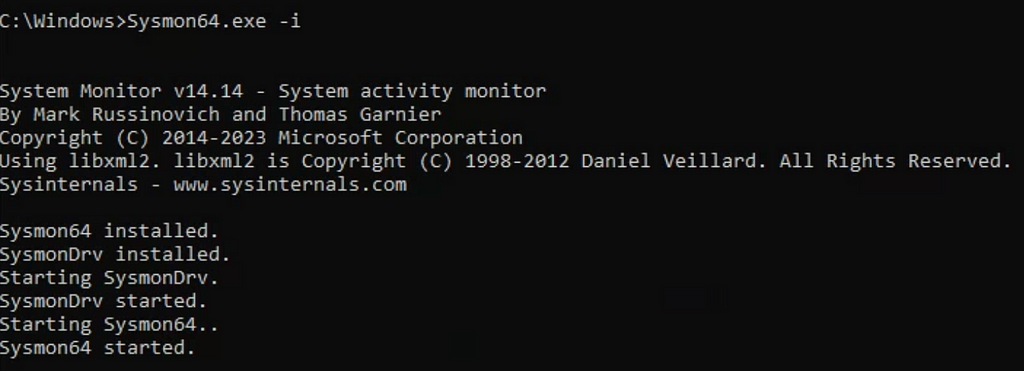
Sysmon is a utility used for Windows and Linux system monitoring. It collects information related to file system activity, program execution, the hash of an executable, and more.
Sysmon is available for download from the Microsoft website:
https://learn.microsoft.com/en-us/sysinternals/downloads/sysmon
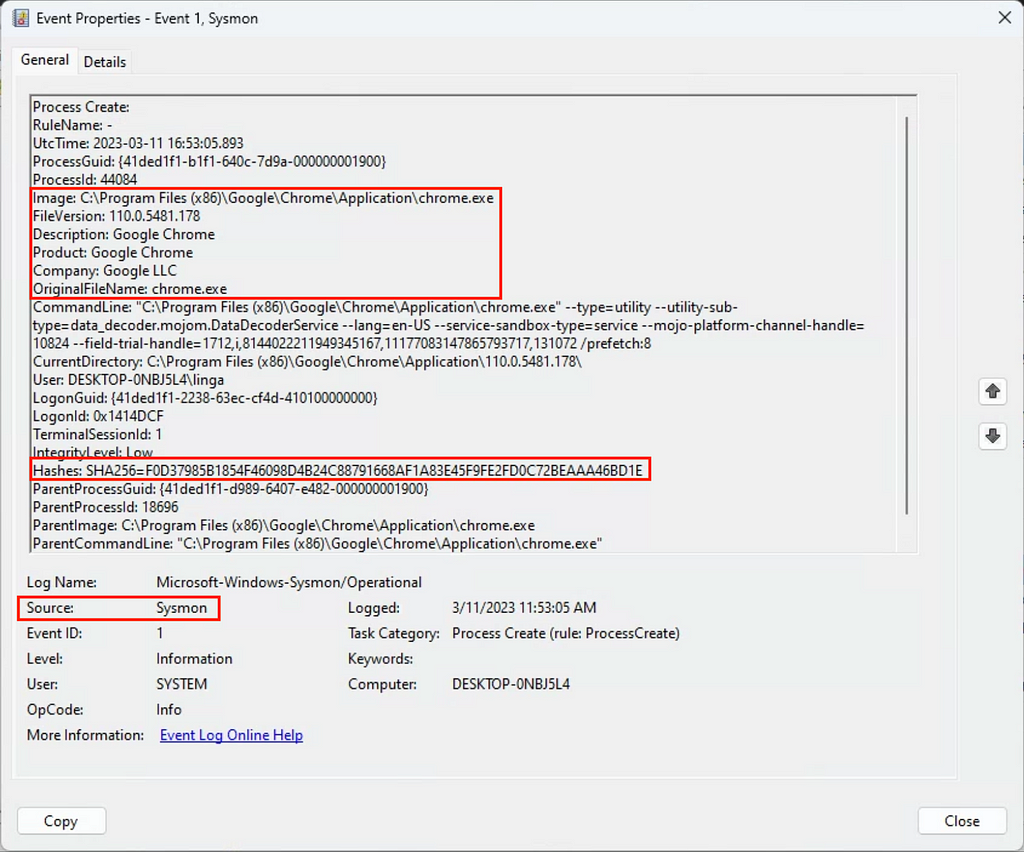
After installation, it will log additional executable information to Windows Events, and the events will be collected by Splunk Forwarder and sent to the Splunk server. Events collected by Sysmon help us analyze attack patterns, including the action performed by an executable.
Example of installing Sysmon and starting Sysmon64 service
Example of logs generated by Sysmon
Part 1: Look for a Web Browser Password Viewer executable and its Company attribute
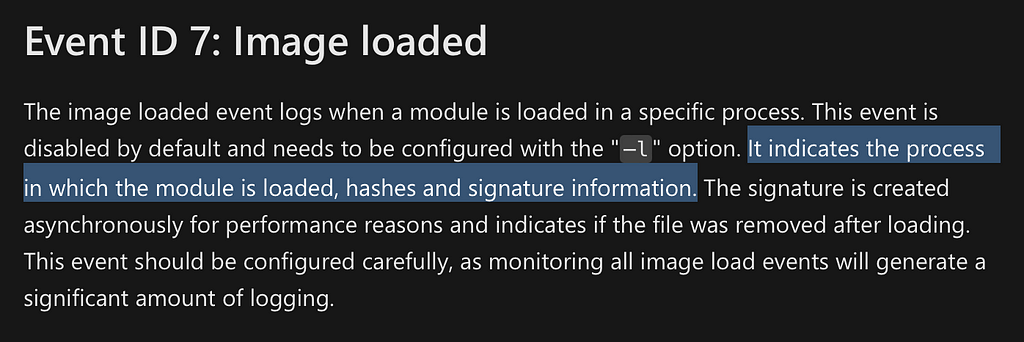
Event ID 7: Image loaded events logged by Sysmon
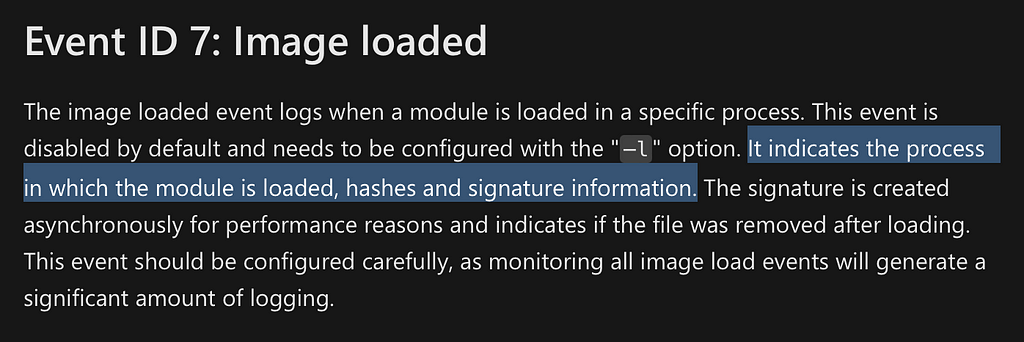
According to Microsoft documentation, Sysmon Event ID 7 refers to the Image loaded by the operating system. It contains information, including the hash and signature information of an executable.
Splunk Query Statement: “sysmon SignatureStatus=Unavailable AND browser”
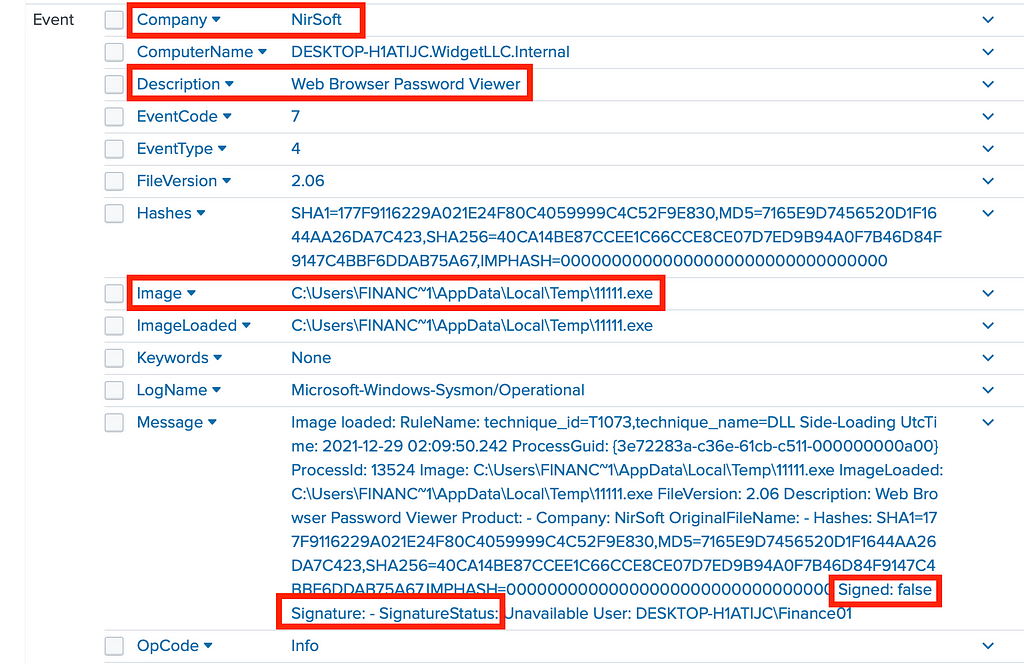
Using the Splunk Query: “sysmon SignatureStatus=Unavailable AND browser”, we can identify executables without proper digital signature with the keyword “browser” included in the description of the executable file.
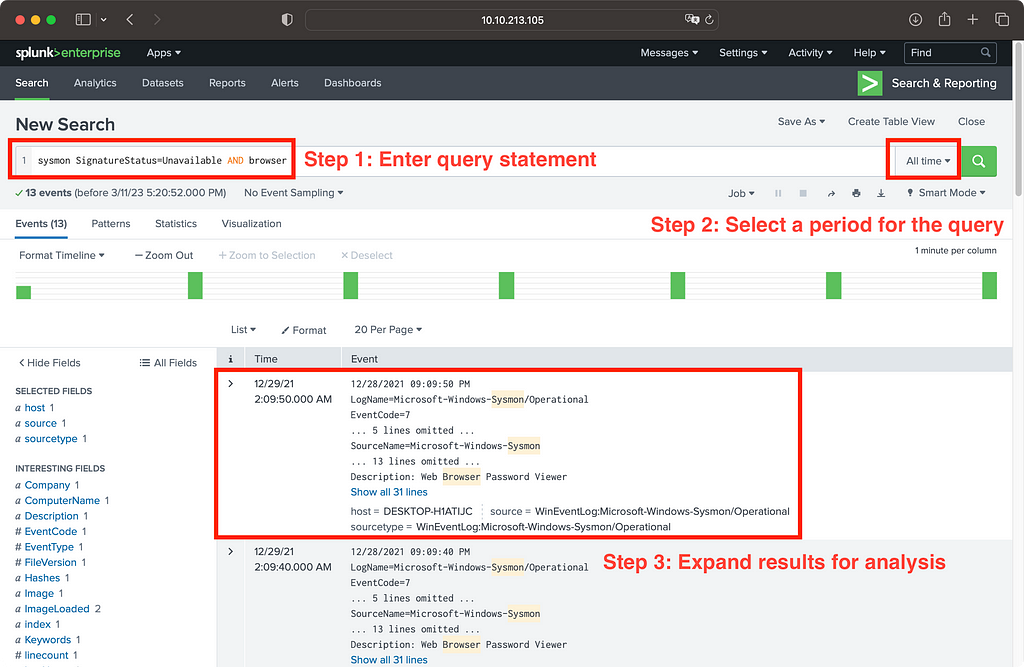
From the result, we learnt a few important pieces of information, including:
#1) Company: NirSoft
#2) Description: Web Browser Password Viewer
#3) Image: C:\Users\FINANC~1\AppData\Local\Temp\11111.exe
#4) Signature: false
#5) SignatureStatus: Unavailable
Therefore, the first two questions in TryHackMe room were solved.
#1) The full path of the binary of the Web Browser Password Viewer executed on the infected machine: C:\Users\FINANC~1\AppData\Local\Temp\11111.exe
#2) The listed company name: NirSoft
Part 2: Look for the original file name of an executable
OriginalFileName information logged by Sysmon
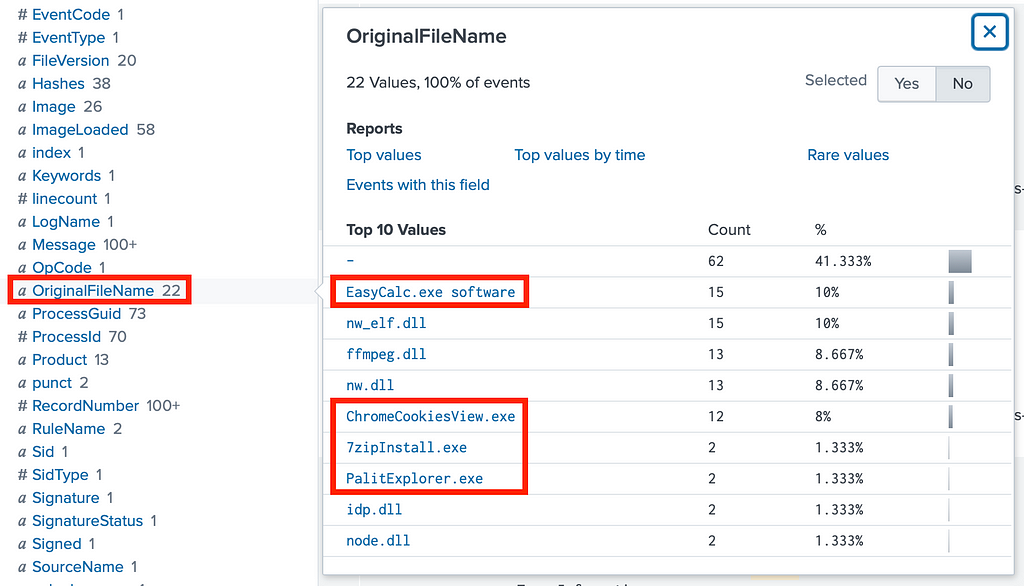
Using the same Splunk query searching for executables without a valid digital signature trusted by the Windows operating system, we can notice that there are several events containing the field “OriginalFileName”.
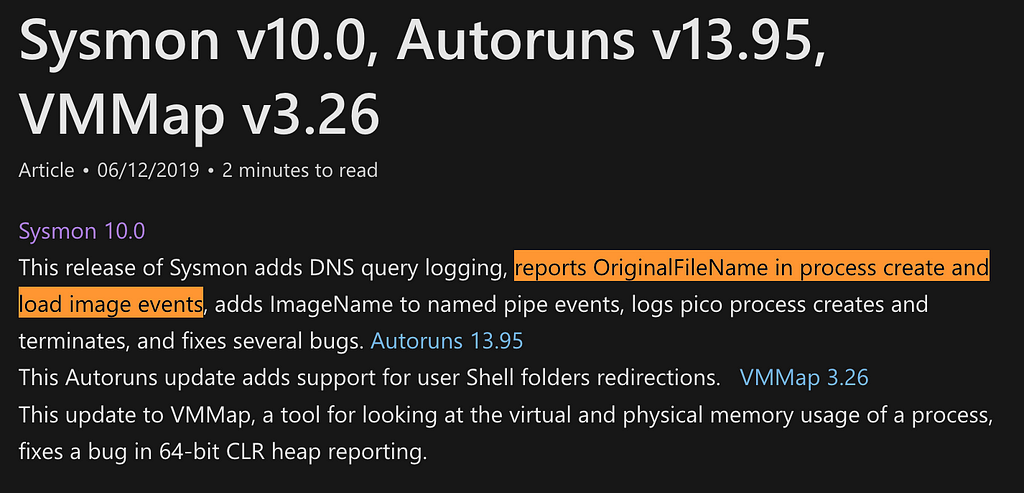
According to Microsoft’s article, OriginalFileName is a field for reporting the original file name executed by a process.
As there are several events with the field “OriginalFileName” containing executables, we can look at each event individually to determine any suspicious activity.
Investigate OriginalFileName Property
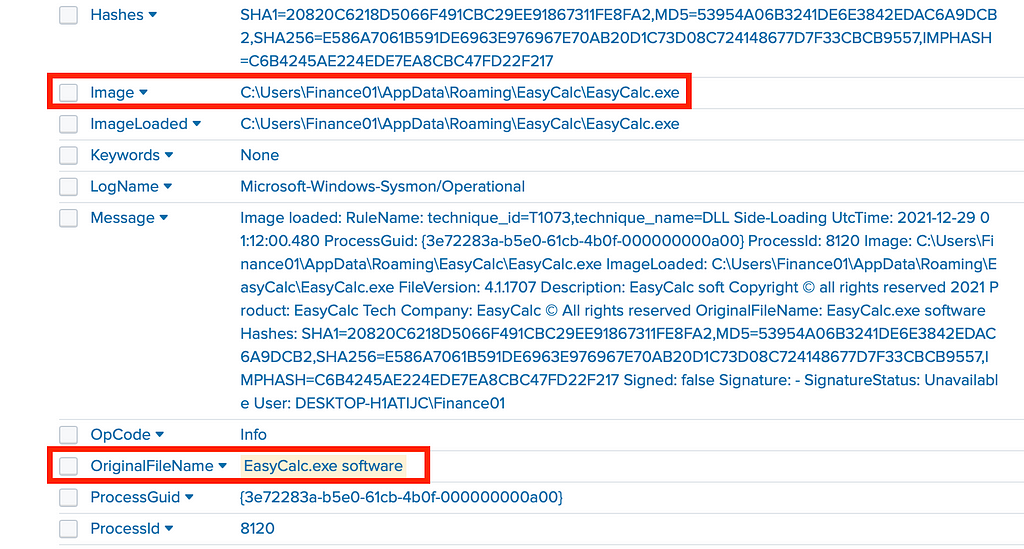
To begin with, look at the first item, “EasyCal.exe.” The OriginalFileName value matches the image name. We can put that aside and continue looking for other events.
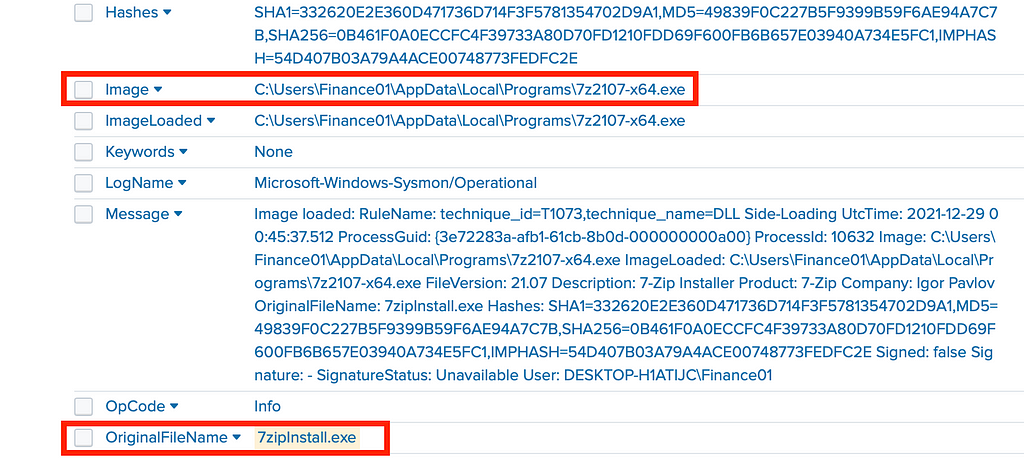
For “7zipInstall.exe”, the OriginalFileName value does not match that of the image name. However, it is reasonable to conclude that “7zipInstall.exe” relates to “7z2107-x64.exe”. Therefore, we can continue investigating the next occurrence.
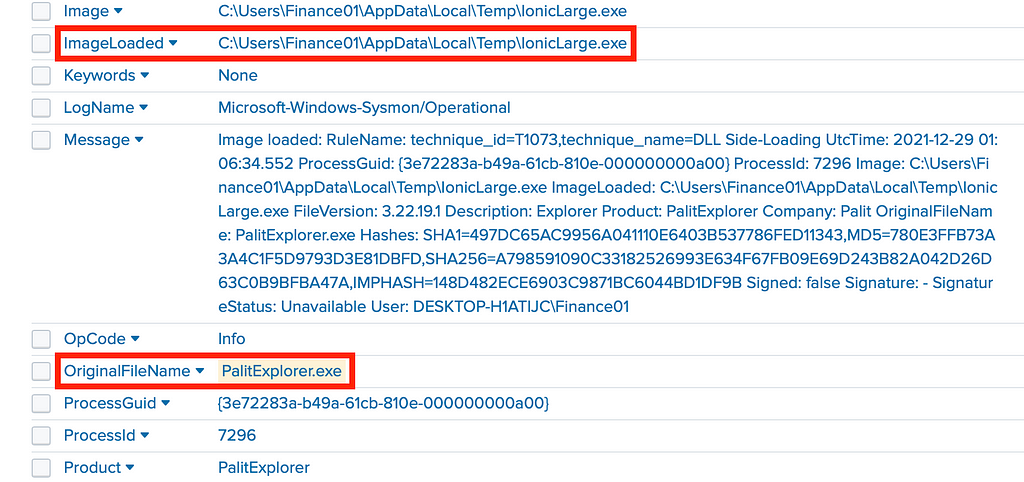
For “PalitExplorer.exe”, the OriginalFileName value does not match the image name “IonicLarge.exe”. There is no similarity between the image executed and the original file name.
Part 3: Identify the suspicious executable attempts to connect to which IP address
Event ID 3: Network connection information logged by Sysmon
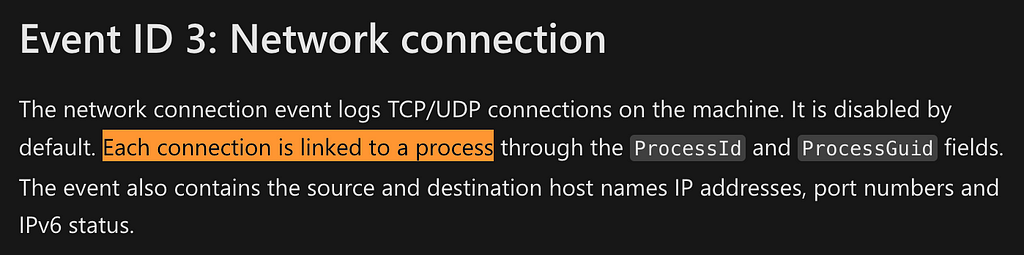
According to Sysmon documentation, Event ID 3 records the Network Connection activity that a process performs. Therefore, we know that we can add “Event ID 3” to filter for events related to network connection by the suspicious application.
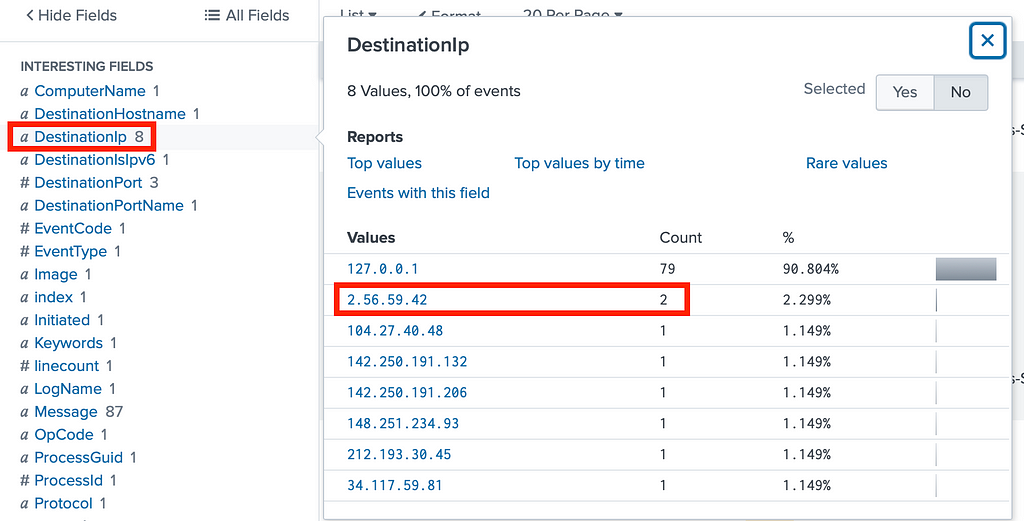
Splunk Query Statement: “sysmon IonicLarge.exe EventCode=3”
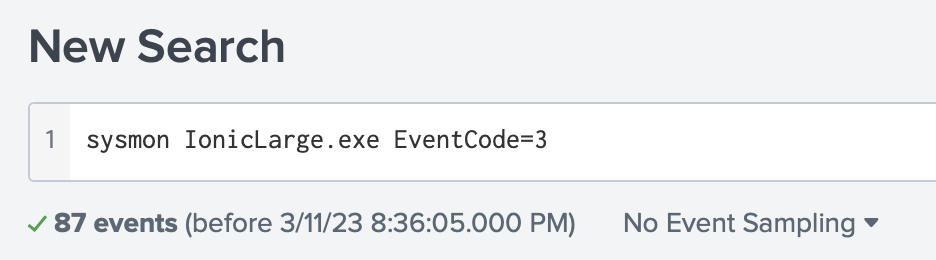
As mentioned in the TryHackMe Lab, the binary made two outbound connections to a malicious IP. Only 1 IP address matches that condition: 2.56.59.42
Part 4: Identify the suspicious executable attempts to change what registry key
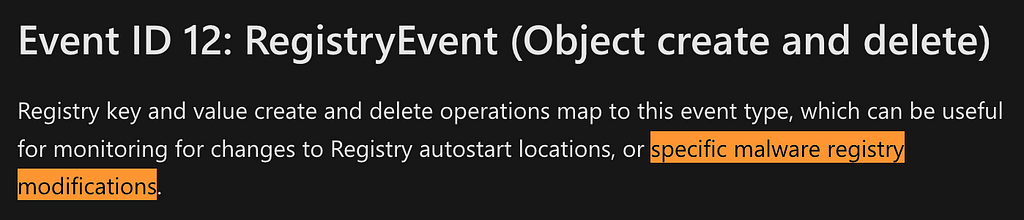
Event ID 12: RegistryEvent (Object create and delete) information logged by Sysmon
According to Sysmon documentation, Event ID 12 records the events related to a process changing Windows Registry values. Therefore, we know that we can add “Event ID 12” to filter for events related to changes in registry key.
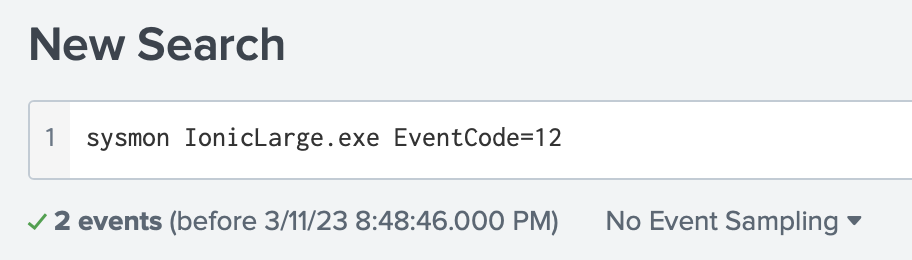
Splunk Query Statement: “sysmon IonicLarge.exe EventCode=12”
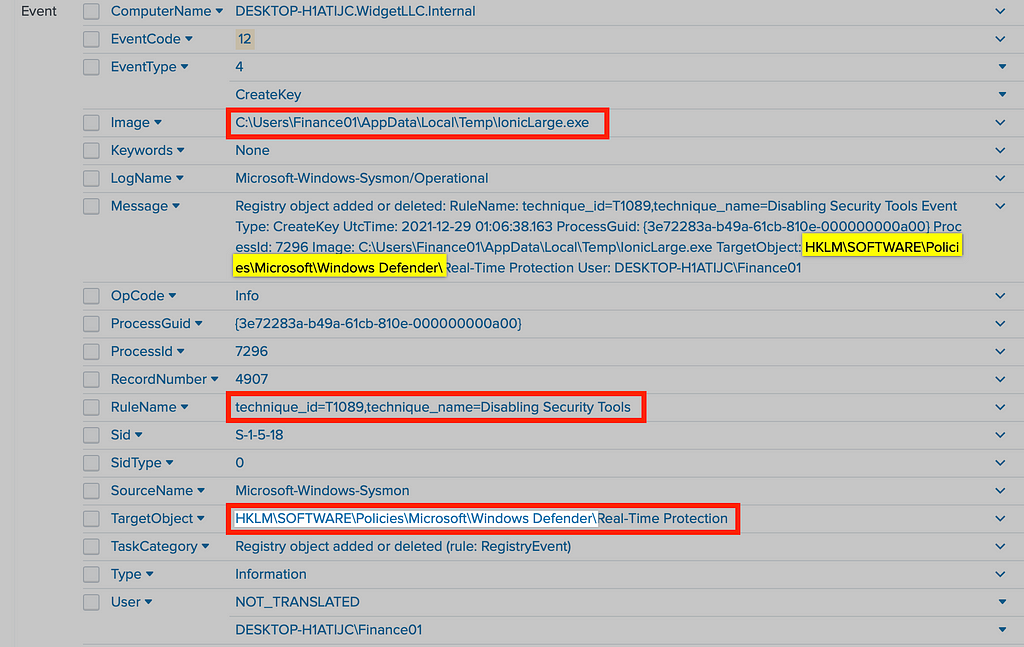
It is found that the event path of the registry change is HKLM\SOFTWARE\Policies\Microsoft\Windows Defender\
Part 5: Identify binaries removed by the malicious executable
Splunk Query Statement: “sysmon taskkill /im”
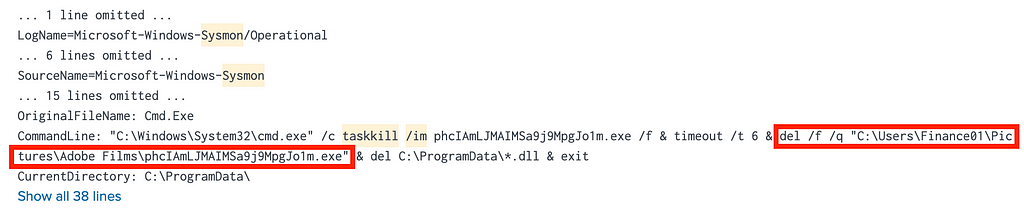
Here we look for any events logged by Sysmon related to killing a task and deleting a file.
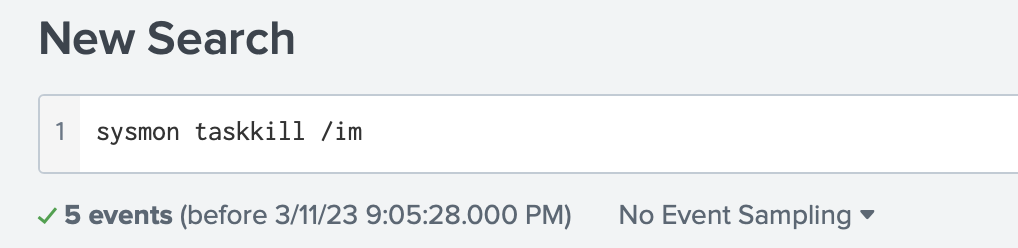
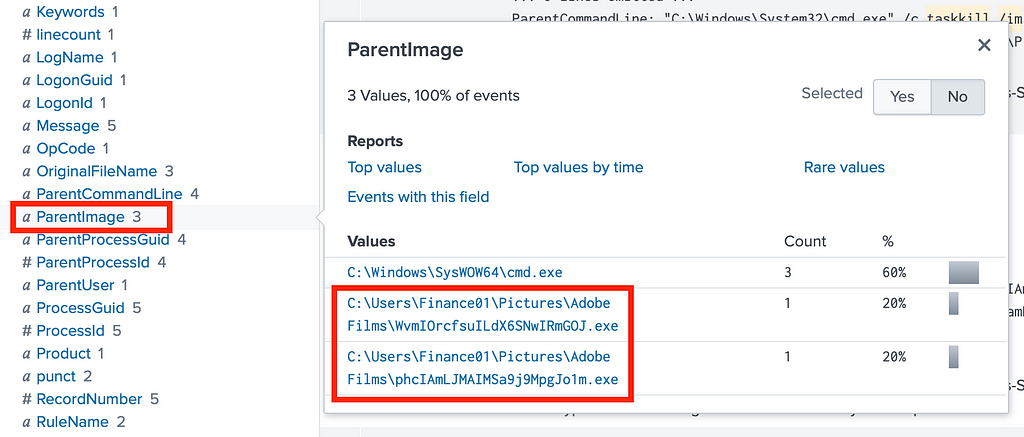
It is found that the commands were executed to terminate the processes and binaries of two files, namely phcIAmLJMAIMSa9j9MpgJo1m.exe and WvmIOrcfsuILdX6SNwIRmGOJ.exe
Part 6: Find out the command executed to change the behaviour of Windows Defender
Splunk Query Statement: “sysmon defender powershell”
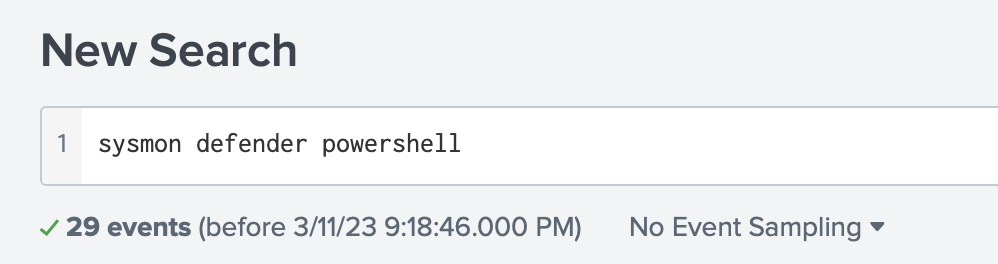
A command was logged by Sysmon, which is:
powershell WMIC /NAMESPACE:\\root\Microsoft\Windows\Defender PATH MSFT_MpPreference call Add ThreatIDDefaultAction_Ids=2147737394 ThreatIDDefaultAction_Actions=6 Force=True

Part 7: Find out IDs set by the attacker
Splunk Query Statement: “sysmon defender ‘Add ThreatIDDefaultAction_Ids’”
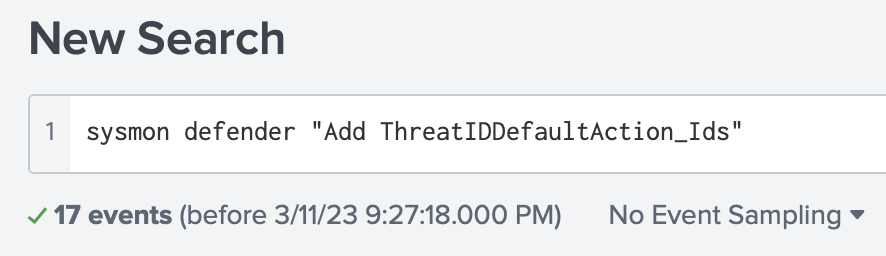
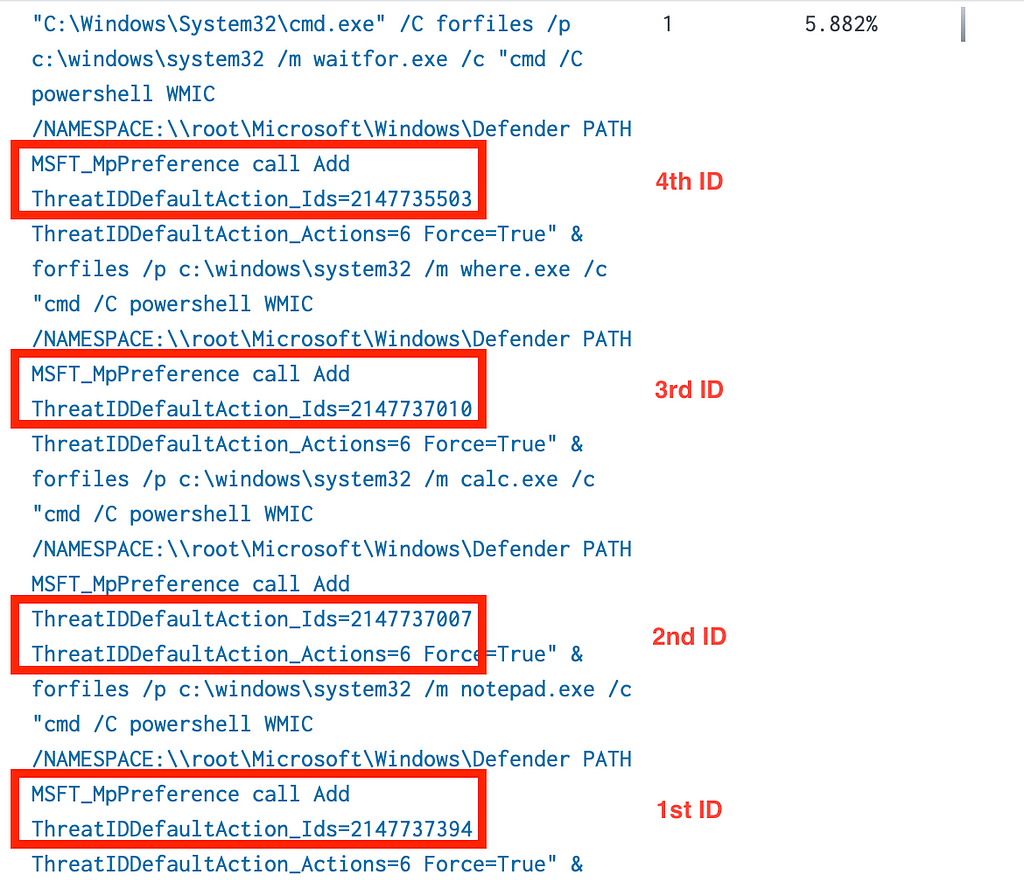
The IDs set by the attacker are identified through the query statement. They are:
2147735503,2147737010,2147737007,2147737394
Part 8: Find out additional malicious binary and the DLLs loaded by the binary through MITRE ATT&CK technique
Event ID 7: Image loaded events logged by Sysmon
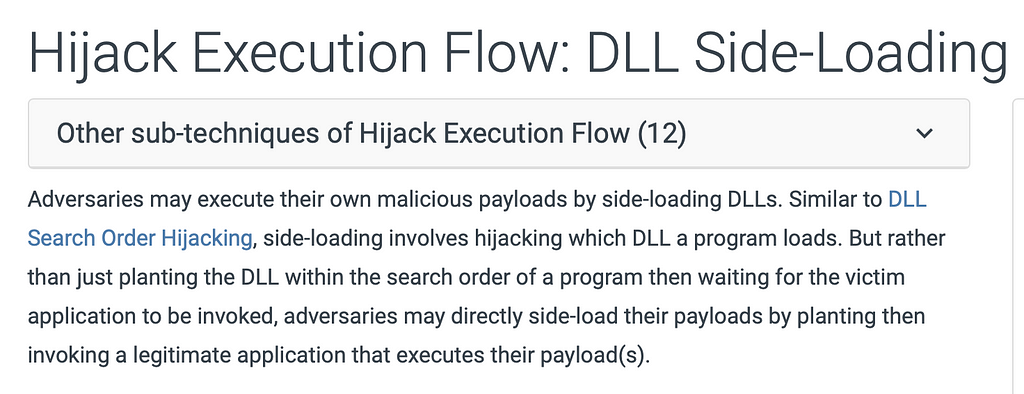
Going back to the events which match Sysmon Event ID 7: Image Loaded, the executable “EasyCalc.exe” was marked alongside “11111.exe” by Sysmon as “DLL Side-Loading.”
Splunk Query Statement: sysmon SignatureStatus=Unavailable RuleName=”technique_id=T1073,technique_name=DLL Side-Loading”

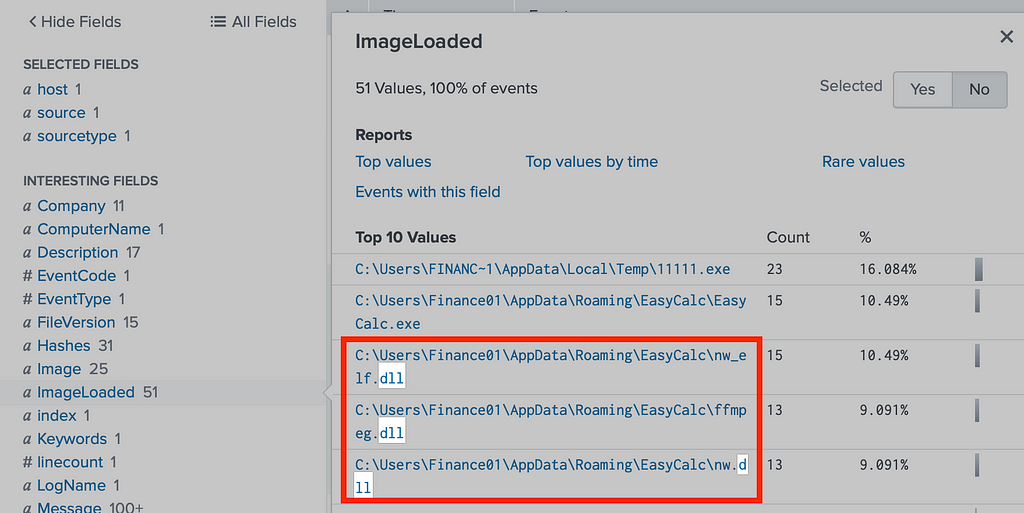
From the query result, we know that the binary path C:\Users\Finance01\AppData\Roaming\EasyCalc\EasyCalc.exe refers to the file demonstrating the behaviour of DLL side-loading, which is a technique described by MITRE and detected by Sysmon.
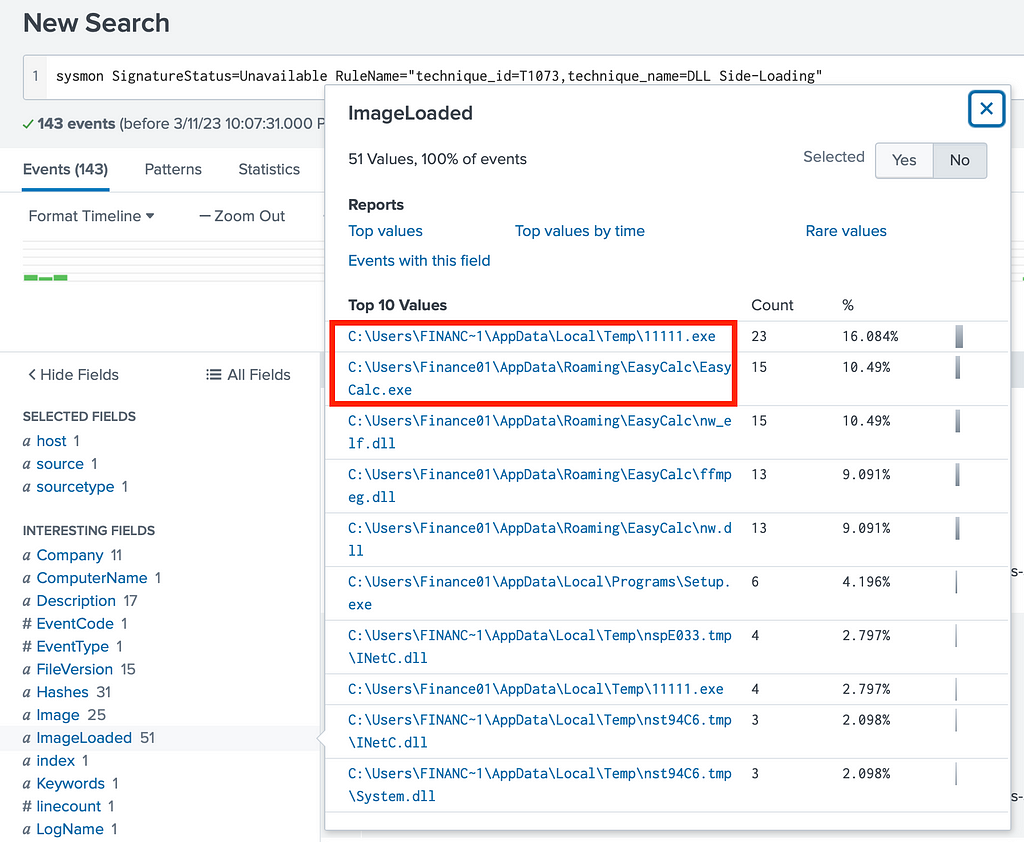
The DLLs that loaded from the EasyCalc.exe binary can be found under the ImageLoaded attribute as well, which were ffmpeg.dll, nw_elf.dll, nw.dll.
DLL Side-loading technique description by MITRE
DLL Side-loading detection mechanism by Sysmon

References
Sysmon Utility:
https://learn.microsoft.com/en-us/sysinternals/downloads/sysmon
Sysmon Version History — OriginalFileName Attribute
https://learn.microsoft.com/en-us/archive/blogs/sysinternals/sysmon-v10-0-autoruns-v13-95-vmmap-v3-26
Sysmon Code — DLL Side-loading
https://github.com/SwiftOnSecurity/sysmon-config/blob/master/sysmonconfig-export.xml
MITTRE ATT&CK — DLL Side-loading
https://attack.mitre.org/wiki/Technique/T1038
About this resource · sources, dates & scope
Attribution: Kelvin Ling. Original publication: .
The original technical writing is preserved. Software-specific procedures can reflect older versions; consult current official documentation before operational use.
Community discussion
Comments
Ask a question or share a practical note. Comments publish immediately after verification and spam checks. Do not post personal or confidential information.
Loading comments…